Instructions
Introduction
Creating a Project
Designing a Form
Form Elements
Text Field
Long Text
Select One
Select Multiple
Form Builder
Text Field
Long Text
Select One
Select Multiple

Loading a Project
Adding a New Entry
Using GPS
Adding a Photo
Entering Form data
Listing Entries
Synchronising Entries
View Entries on Map
Local Entries
Remote Entries
Filtering Entries
Loading
a Project
Adding a New Entry
Listing Entries
Synchronising Entries
View Entries on Map
Settings

Project Website
Viewing Data
Mapping Interface
Data Points
Chart View
Filtering Data
TIme Slider
Chat Panel
Google Earth
Customising |
Viewing Entries on a map using an Android Device

Within EpiCollect we provide the ability to view and filter
data collected on your handset using Google Maps. You can either
view and filter entries collected on your phone (local entries)
or request (and view/filter) entries from the central project
website entries that have been submitted (by you or other users)
to the project website (remote entries).
|
NOTE: To use the mapping facilities within EpiCollect on the phone you need to be connected to either a mobile data network (3G etc) or a wireless network.
To view your (and/or remote) entries using Google
Maps on the phone, from the homescreen click 'Display Map'
(as left). |
|
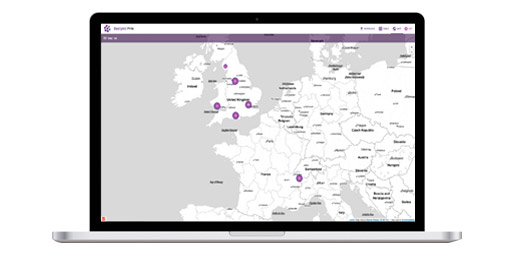
You will now be presented with a Google Map and, if
GPS is enabled, your current location will be displayed
(blue dot). A compass is displayed in the top left of
the map and, by clicking the menu button on your phone,
you can specify the style of map you wish to
view etc.
|
We are now going to display entries on the map. Firstly we
will display all entries that you have collected on the phone you are using which we term 'Local Entries'.
|