Instructions
Introduction
Creating a Project
Designing a Form
Form Elements
Text Field
Long Text
Select One
Select Multiple
Form Builder
Text Field
Long Text
Select One
Select Multiple

Loading a Project
Adding a New Entry
Using GPS
Adding a Photo
Entering Form data
Listing Entries
Synchronising Entries
View Entries on Map
Local Entries
Remote Entries
Filtering Entries
Loading a
Project
Adding a New Entry
Listing Entries
Synchronising Entries
View Entries on Map
Settings

Project Website
Viewing Data
Mapping Interface
Data Points
Chart View
Filtering Data
TIme Slider
Chat Panel
Google Earth
Customising |
Designing a Form - Form Builder
 |
To design your form we provide a drag'n'drop form builder that allows you to drag form elements onto a template form and then define the FORM ELEMENT DETAILS that specify the labels and the values for the form elements you choose. |
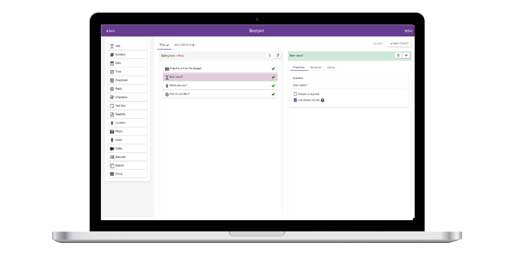
Dran 'n' Drop Interface
The basic interface can be seen below:
The Form Builder consist of three Sections :
- Form Elements (Left Section-PINK) - Lists the Form Elements you can use (see here for explanation)
- Form (Middle Section-GREEN)- This is the area that you drag a form element to to build-up your form and allows you to see how the form will look on a mobile device.
- Form Element Details (Right Section-BLUE) - For each Form Element you choose you must define certain details.
Briefly, to design a form, you can drag and drop any number
of Form Elements (left section-Pink) to the blank form (middle
section-Green). Click and Drag the type of Form Element you
need to between the two horizontal bars on the green Form Section
(you will see a yellow highlight box when in position) and
release. Each time you add a form element you should fill in
the Form Element details section (right section-blue) and click
done. Please read carefully the following section which explains
each of the Form Element details that are required and why.
Form Element Details
Every Form Element has a LABEL and an ID and a number of options to select.
|
The LABEL is the text that will be displayed on the phone next to the form element and should describe what data you wish to be entered into that form element.
The ID is how the data collected for that form element is stored in your project database, and can be thought of as equivalent to a column heading in a spreadsheet or database.
The ID chosen be short and contain no spaces and only consist of alphanumeric characters.
|
For example, if you wished to ask the question 'What is your name?' you would use a Text Input element.
The LABEL would be 'What is your name?' which would appear next to the text input box on the phone and you could specify the ID to be 'name'.
There are a number of other choices you can make for each form element listed as follows:
| Required |
If you select this for an element it means that when entering data on the phone you MUST include an answer within this field. |
| Title |
The Title option allow you to choose one form element to act as the title for each entry you make on the phone. Data entered into the title form element will be displayed when all entries are listed (see
here for further details).
Note : You can only choose ONE form element to act as the TITLE for each form. If you try to choose more than one you will be warned when you come to save your form. |
| Numeric |
If you check the Numeric checkbox for a form element it means that on the phone you will only be allowed to enter numeric data on your phone for that form element. |
| Chartable |
At your project home page mapping interface (further
details here) we provide the facility to display bar
charts or pie charts of the data you collect. If you
check the Chartable checkbox it means that you wish to
be able to display the data collected for this form element
as a chart.
Note: Currently you can choose a maximum of three form elements for charting. Also note, that charting will work best for 'Select One' and Select Multiple' form elements where you can specify the choices to be made. |
There are some variations for each specific form element which will now be detailed:
To demonstrate, we will describe the process we used to build
the form used within the 'demoproject' which
is preloaded into the EpiCollect mobile app. Please note, this
is the same process that you can use to design forms for your
own projects. The demoproject contains a series
of simple questions using different examples of Form Elements.
The questions we will ask are as follows:
Q1. What is your name / nickname? For this we will use a Text Input form element
Q2. Male or Female? For this we will use 'Select one' Form Element and will define the options
Q3. What is your age? For this we will use another 'Select one' Form Element.
Q4. Which search engine do you most often use? For this we will use another 'Select one' Form Element.
Q5. Which social networking sites do you use? For this we will use a 'Select multiple' Form Element.
| Text Input - Q1) What is your name / nickname? |
|
Drag a Text Input form element from the left section to
the middle section and drop in place. You will then see
that the Element Details section (blue) contains a box
to enter the Label and ID of
the element and a series of check boxes to specify its
properties.
For our first form element we enter 'What is your name
/ nickname?' in the Label box and we want
to store this data as 'name'. We also want all entries
to have data for this form element and so we check the Required box.
When we list all the entries collected for this form we
want the name that was entered to appear as the title for
each entry. This Form Element will therefore be the one
assigned as the 'Title' and we have checked the Title checkbox.
Clicking 'Done' updates the middle Form section with our
entries as in the above figure.
If, for example we were asking the question 'what is your
age?' we could also check the Numeric checkbox
and this would mean that only numeric characters could
be typed into this form element when loaded onto a phone
(your phones keyboard will not allow you to enter anything
other than numbers).
We have left the chartable check box blank as, in general,
charts are most applicable when you have specified a defined
set of choices for entry (see Select one below for example)
so that the charts are meaningful. For example, if you
had 100 people entering a different name, your chart would
soon become unreadable!
|
| Select One - Q2) Male or Female? |
|
For this question we will use a 'Select One' form element.
As with the text input, we drag a 'Select one' from the
Form Element section to the Middle section and position
it under the 'What is your name....' form element and
release. Again, the element details section updates but
this time with details for a Select One form element.
Again, the Label and ID boxes are now filled in. For Label we enter 'Male or Female?' and we will store this data with the ID 'sex'.
Now we must define each of the options that a user can
choose - In this example the answer to the question can
only be 'Male' or 'Female'. This form element differs
slightly from the text input form element in that each
option has two pieces of information that need filling
in - the option Name and
the option value.
|
For each OPTION you wish to use you must specify a Name and Value
The Name is what will appear in the drop-down list when viewed on the phone
The Value is what will be stored in the database when this option is selected for entry to a select one element.
We use these two values because in some cases you may not
want to store what is selected by a user as the value in
a database. For example, if you had 10 options you wanted
to define (eg a list of colours) you may want to store
integer values for your list of 10 rather than the name
of the colour. |
To specify further options simply click
the 'Add Option' button and this will add a new option
where you can fill in the name and value. So back to
our 'Male or Female?' question. In this case we are going
to define two options 'Male' and 'Female' Having entered
'Male' in both the option name and value, we can now
click 'Add option' and fill in the details for the 'Female'
option, as in the following figure.
For this question, we might want to
chart the data and so we click the 'Chartable' check
box (and we've chosen a pie chart) and also the 'required'
option as, in theory, it should always be possible to answer this
question.
Once we have entered the choices we can click 'Done' at the bottom right of the Form Builder to save the choices and update the middle Form section with our options (as above).
In the same way, and using further Select one Form Elements, we can now also enter the questions and options for questions 3 and 4 as follows.
Q3. What is your age?
Q4. Which search engine do you most often use?
Clicking 'Done' after entering details for each question updates the form as in the following screenshot (note we are focussed on Q4 so the Element details appear to the right).
|
| Select Multiple - Q5) Which social networking sites do you use? |
As there are several options, we drag a 'Select
Multiple' form element to the green Form Section and
the Element Details section of the form builder updates.
In a similar fashion to the Select One form element
we will define a number of options that a user may choose,
each of which need an Option
Name and Option
Value entered.
For the Select Multiple Label we enter
'Which social networking sites do you use?' and
we will store this data with the ID 'socialnetworks'.
By using the 'Add option' button we can add our list
of websites and specify each option name and value as
in our Select One example. After doing so we select that
this is a 'Required' field and also that we want to chart
the results as a pie chart. Clicking done updates the
form as in the following figure.
|
| Previewing your form as you go along |
As you are building up your form, or when you have
completed the form, you can get a sense of what it will
look like on a mobile device by clicking 'Android'
or 'iPhone' on the 'Preview' line at the top of
the green Form section of the form builder. As an example
below is a preview of the above form on an Android device.
NOTE: 'Select One' options will appear as drop-down
lists when loaded on the phone, however, for preview
purposes you will see them as a list of options. Also,
on an Android device, if your form contains more than
five form elements, the form will
automatically be paginated into a series of pages to
make it easier to enter large amounts of data.
Android Preview
|
| Long Text Form Elements |
We haven't included a Long Text Element in our 'demoproject'. However, as with the other form elements, a Long Text Form element can be dragged from the Form Element section to the Middle section and positioned anywhere within the Form.
The label and ID are entered in the same way. Long Text form elements are chosen when the kind of question being asked requires a longer answer than that relevant for a simple text input and could extend over more than one line.
You will notice that in the Element details section for a Long Text Element, 'Numeric' and 'Chartable' are greyed out. This is because long text fields are designed for ..longer text.. and as the data entered is likely to be different each time this sort of data is not applicable for charting purposes. Clicking 'done' updates the middle section as previously.
|
Once you have added all the elements you require for your
form you can click 'Finished-Save Form' at
the bottom of the form builder to save the form for your new
project.
If you have entered anything incorrectly you will receive an error message indicating where the error has occurred.
Now you are ready to load your project onto a mobile phone (or to send the project name to others for loading onto multiple phones).
|