Developers
EpiCollect is an open project and the mobile app code is
available to view at Google code. Click
here.
We also provide a slightly simpler way for you to send data to servers other than Google's AppEngine (which we use for hosting projects created at EpiCollect.net). This can be achieved by hosting form definitions on your own servers and loading them as 'projects' in the EpiCollect app.
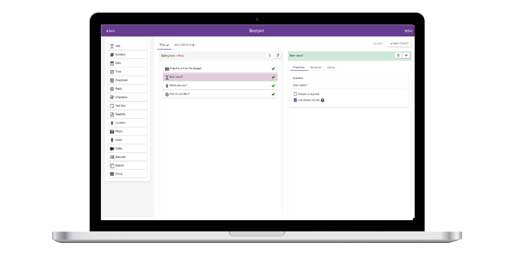
When a form is created using the online Form Builder, the
definition of that form is stored as XML (we use a variation
of the XForms vocabulary).
You can define your own forms using this vocabulary and we
have implemented a number of extra TAGS which allow you to
specify where the data and photos are sent to and also to specify
the location of a script which will retrieve data from the
server for inclusion in the 'Remote Entry' sections within
the EpiCollect App.
The XML used to define the forms is simple and the following describes the form definition generated and used within the 'demoproject' described in the Instructions. (For a general tutorial on XML see here).
The following code shows the required sections of the form definition:
<xform>
<model>
<submission id="demoproject" projectName="demoproject"
allowDownloadEdits="false" versionNumber="1.0" />
</model>
</xform>
Firstly, the <xform> tag surrounds the form definition.
Secondly, every form must include <model> tags
The <model> contains the <submission> tag, consisting of 4 entities:
| id |
the id of the form |
| projectName |
the name of the project (for projects generated at EpiCollect.net the id and projectName are set to be the same by default and for ease of use. However, using different ids opens the possibility for using multiple forms for the same project. In this version of EpiCollect.net we chose initially to provide the simple generation of one form for one project. |
| allowDownloadEdits |
true: allows users to amend and save remote entries when loaded into the EpiCollect App.
false: Prevents users amending and saving remote entries when loaded.
Currently, for projects generated at EpiCollect.net we set this as false by default but you may wish to use this functionality in your own projects. |
| versionNumber |
refers to the Version number of the form. |
These sections are required and parsed when loaded into the EpiCollect app. We also use these within EpiCollect.net when defining project instances within AppEngine.
The definition of fields used within the form follow directly after the closing </model> tag and before the closing </xform> tag.
The types of form elements and associated TAGS / entities are listed as follows:
Text Input
<input ref="name" required="true" title="true" numeric="true" chart="pie">
<label>What is your name?</label>
</input>
Allowed Entities:
| ref |
This specifies the name that will be used to store data entered into the text input form element within the datastore (AppEngine). Can be thought of as a column heading. |
| required |
true indicates this is a required field - EpiCollect will warn users if not filled in. Can be set to false or simply omitted |
| title |
true indicates that the value of this field will be used as an entries title (see Instructions). Can be set to false or simply omitted |
| numeric |
true indicates that only numeric values can be entered - Within EpiCollect only numeric values will be allowed to be entered in the form field. Can be set to false or simply omitted. |
| chart |
Indicates that this field will be used within the charting facilities at EpiCollect.net and can be set to either 'bar' or pie' |
The <label> tag contains the text that will be displayed above the text input when the form is generated within the EpiCollect app.
Select One
<select1 ref="searchengine" required="true" chart="bar">
<label>Which Search engine do you most often use?</label>
<item>
<label>Google</label>
<value>Google</value>
</item>
<item>
<label>Yahoo</label>
<value>Yahoo</value>
</item>
</select1>
Allowed Entities:
| ref |
This specifies the name that will be used to store data entered into the text input form element within the datastore (AppEngine). Can be thought of as a column heading. |
| required |
true indicates this is a required field - EpiCollect will warn users if not filled in. Can be set to false or simply omitted |
| title |
true indicates that the value of this field will be used as an entries title (see Instructions). Can be set to false or simply omitted |
| chart |
Indicates that this field will be used within the charting facilities at EpiCollect.net and can be set to either 'bar' or pie' |
The choices specified for the Select One element are defined within the <item> tags. The <label> is the text that will appear to the user and the <value> is the text which will be stored for that choice if chosen.
Select Multiple
<select ref="socialnetwork" chart="bar">
<label>Which Social networking sited do you use?</label>
<item>
<label>MySpace</label>
<value>MySpace</value>
</item>
<item>
<label>Facebook</label>
<value>Facebook</value>
</item>
</select>
Allowed Entities:
| ref |
This specifies the name that will be used to store data entered into the text input form element within the datastore (AppEngine). Can be thought of as a column heading. |
| required |
true indicates this is a required field - EpiCollect will warn users if not filled in. Can be set to false or simply omitted |
| title |
true indicates that the value of this field will be used as an entries title (see Instructions). Can be set to false or simply omitted |
| chart |
Indicates that this field will be used within the charting facilities at EpiCollect.net and can be set to either 'bar' or pie' |
The choices specified for the Select One element are defined within the <item> tags. The <label> is the text that will appear to the user and the <value> is the text which will be stored for that choice if chosen.
Long Text
<textarea ref="myLongTextField">
<label>Enter your description here</label>
</textarea>
Allowed Entities:
| ref |
This specifies the name that will be used to store data entered into the text input form element within the datastore (AppEngine). Can be thought of as a column heading. |
| required |
true indicates this is a required field - EpiCollect will warn users if not filled in. Can be set to false or simply omitted |
Putting it all together
<xform>
<model>
<submission id="demoproject" projectName="demoproject"
allowDownloadEdits="false" versionNumber="1.0" />
</model>
<input ref="name" required="true" title="true" numeric="true" chart="pie"> <label>What is your name?</label> </input>
<select1 ref="searchengine" required="true" chart="bar">
<label>Which Search engine do you most often use?</label>
<item>
<label>Google</label>
<value>Google</value>
</item>
<item>
<label>Yahoo</label>
<value>Yahoo</value>
</item>
</select1>
<select ref="socialnetwork" chart="bar">
<label>Which Social networking sited do you use?</label>
<item>
<label>MySpace</label>
<value>MySpace</value>
</item>
<item>
<label>Facebook</label>
<value>Facebook</value>
</item>
</select>
<textarea ref="myLongTextField">
<label>Enter your description here</label>
</textarea>
</xform>
This shows a trimmed version of the 'demoproject' XML but the actual form definition can be seen here.
Hosting form definitions on your own servers.
When loading a Project into the EpiCollect mobile app, the current method involves entering just the project name (eg demoproject). By default, data is submitted to AppEngine for viewing at the project homepage. However, to make the system flexible it is easy for you to host the XML at your own servers and for data to be directed to scripts on your own server for handling.
To do this you should create an XML form definition (as above) and host this on your server with a defined URL
eg http://www.myserver.com/myproject.xml
Within the XML you should also specify THREE additional TAGS to those detailed above. These TAGS should be placed just below the closing </model> tag within your XML and are as follows:
<uploadToServer>http://www.yourserver.com/uploadDataScript</uploadToServer>
<downloadFromServer>http://www.yourserver.com/downloadDataScript</downloadFromServer>
<uploadImageToServer>http://www.yourserver.com/imageHandlingScript</uploadImageToServer>
<uploadToServer> defines the name of a script where your entries should be submitted to. We use a simple POST method to send entry text data and your script should request the same variables as defined in the XML. Upon successful submission your script should return '1' to denote that synchronisation has been successful.
<downloadFromServer> defines the script which the EpiCollect app requests data from when loading remote entries. The data should be returned in XML in the same format as the form definition
<uploadImageToServer> to handle photos you should enable a script to upload binary files to your server and define the location of this script here.
Loading a Project XML
definition, which is hosted
on your server, into the EpiCollect
App.
Simply enter the full URL to your XML file into the 'Load Project' text box (see here) .
So, enter http://www.myserver.com/myproject.xml rather than 'myproject'. The EpiCollect app will retrieve your XML, and providing the three TAGS above are included and correct will send and retrieve data from your server.
For any further help, please feel free to contact us.
|