Instructions
Introduction
Creating a Project
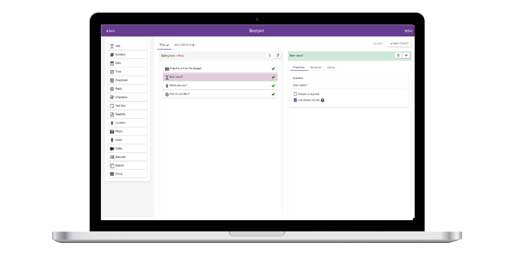
Designing a Form
Form Elements
Text Field
Long Text
Select One
Select Multiple
Form Builder
Text Field
Long Text
Select One
Select Multiple

Loading a Project
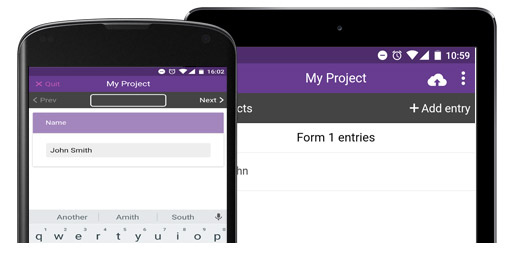
Adding a New Entry
Using GPS
Adding a Photo
Entering Form data
Listing Entries
Synchronising Entries
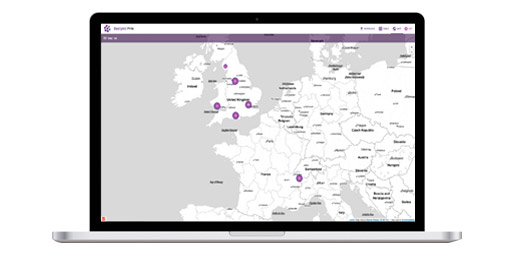
View Entries on Map
Local Entries
Remote Entries
Filtering Entries
Loading a Project
Adding a New Entry
Listing Entries
Synchronising Entries
View Entries on Map
Settings

Project Website
Viewing Data
Mapping Interface
Data Points
Chart View
Filtering Data
TIme Slider
Chat Panel
Google Earth
Customising |
Loading a Project on an iPhone

|

|
To download EpiCollect for the iPhone, visit the App Store on your iPhone and search for
EpiCollect, or click the image on the left. EpiCollect is free.
.
|
|
To start collecting data for a particular project you will need to load the project form onto the phone.
You will need to have data access either using a mobile data network (3G etc.) or via connection to a wireless network.
|
|
By default, the EpiCollect 'demoproject' is
loaded onto your phone. However, we will briefly run through
how to add another project.
From the Home screen (which appears when you launch
EpiCollect - as left), tap 'Settings'
|
|
The Settings Screen indicates a number of options
for customising EpiCollect and we shall explain these
in more detail here:
However, for the time being just focus on the last text
box titled 'Project'.
As mentioned, the 'demoproject' is already loaded.
To add a new project, tap the textbox that says 'demoproject'
|
|
You will see a 'Select Project' popup. This allows you
to either choose a currently loaded project (you can
have many projects on one phone) or load a new project.
Tap 'New' to load a new project.
|
|
Here is where you enter the name of the project you
would like to load.
Clicking 'Done' loads the project and accompanying forms
into EpiCollect.
|
You can switch back to the demoproject (or another project
you have loaded) at any time by following the same instructions.
Furthermore, the 'Delete Project' button below the Project
textbox allows you to choose a project to delete.
Once loaded you are ready to start collecting data. Click
the button marked 'EpiCollect' in the top left of the WIndow
to return to the main homescreen.
You are now ready to start entering data, so please click the link 'Adding a New Entry' below.
|