InstructionsDesigning a Form Form Builder
Adding a New Entry View Entries on Map
Mapping Interface Google Earth |
EpiCollect.net - Google Earth
EpiCollect is designed primarily for use with Google Maps. However, all data can also be viewed within Google Earth. To access this view click the panel above the Google Map Window marked 'Google Earth'. You should then see a link which will allow you to download data as KML (the file format used within Google Earth)
![]()
By using the scrollbars, all data can be seen - for images, clicking on the image name brings up a pop-up window containing the image (click 'x' to close the pop-up) Each column heading can be clicked which allows data to be sorted by that column in ascending or descending order.
![]() Downloading Data When Clicking the link you will download a KML file that will open withing Google Earth. You must have Google Earth installed to be able to view data. Google Earth can be downloaded for free by clicking the following image
![]()
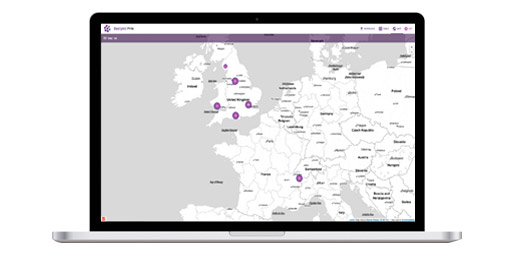
All entries for a particular project will be displayed as placemarks on the virtual globe. Clicking any point will launch an 'Info Window' containing all of the entries details (as above). NOTE: Within Google Earth data cannot be filtered and charting will not be displayed. For these facilities we recommend using the standard Mapping Interface. We will now conclude by showing you how you can simply customise your project homepage with an image and some explanatory text.
|