InstructionsDesigning a Form Form Builder
Adding a New Entry View Entries on Map
Mapping Interface |
EpiCollect.net - Mapping Interface
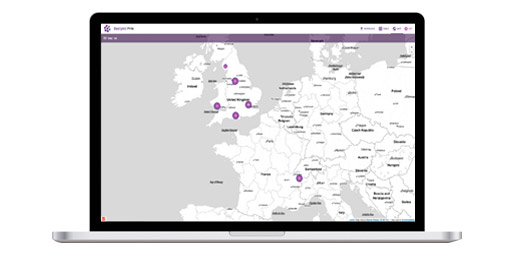
We provide the ability to view all data collected for a project using Google Maps / Google Earth and charts which display graphically summaries of data collected. Those data which are charted are those defined when a project is first set up. You can access the mapping interface by clicking the link on the project homepage 'Show data on Map' The initial view will show a map zoomed out to include all the points representing entries that have been submitted to the project you are viewing. The initial map view consists of a number of sections as in the following screenshot:
![]()
Data points (i.e. each entry) are listed to the left hand side of the map. Each entry is listed with its TITLE as the reference text as defined within the Projects Form. Clicking any data point on the left (or any point on the map) will open an 'Info Window' containing all entries for that record as in the following screenshot:
![]() At any point, using 'click-drag-zoom', the map can be explored and the type of map (eg satellite, Hybrid etc.) can be changed using the Google Map buttons at the top right of the Map Section. Chart View To the right of the map view any field that has been flagged for charting will be displayed as either a pie chart or as a bar chart. Fields for display in this fashion are defined when a project is initially setup. Initially, the charts show a summary of all data points. However, by filtering the data, points (and updated charts) can be displayed based on the specific subset of the data. We will now detail filtering data.
|