InstructionsDesigning a Form Form Builder
Adding a New Entry View Entries on Map
Viewing Data |
EpiCollect.net -Viewing Project Data
You can view all data collected using either the mapping interface (see here) or as a table containing all records.
Tabular View When selecting the Browse Project data link from a project homepage you will initially see a table containing all entries submitted by all phones (Android and iPhone devices) to a project database.
![]()
By using the scrollbars, all data can be seen. You can re-order the columns (in a similar way to that used when using a spreadsheet such as Excel). Also, if you click to the right of a column heading you can sort data by a column and /or choose which columns you wish to display in the table (see screenshot above).
When clicking on a row (which corresponds to a particular entry) any photograph associated with that entry will be displayed below the table (see following screenshot). ![]() Downloading Data Below the table and to the right, a dropdown box is present which allows you to download data in a number of formats:
Please note, photos will NOT be included within the download formats. Instead, a direct URL, which links directly to each photo, is included. The XML format adheres to that generated using the Form Builder when a project was set up and certain TAGS will be project specific. Please see the developer section for further details
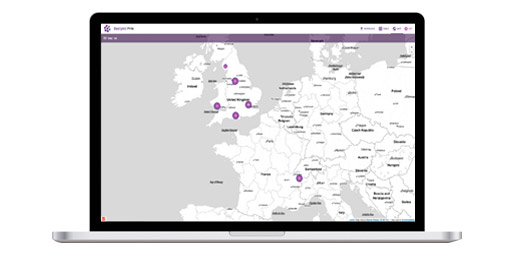
The most common and visual way of exploring data submitted to a particular project will be by using the mapping interface which we will now detail.
|